
The latest iPad Air with M4 and iPad Pro with M5 deliver significant performance improvements and more capable multi-tasking. Enhanced Stage Manager window management and reliable support for high-resolution external displays allow these devices to handle standard computer workloads more effectively than previous generations. When paired with a quality keyboard and trackpad, core tasks such as typing, web browsing, and document processing begin to approach the experience of a conventional laptop.
This capability raises several common questions: Can an iPad realistically serve as a computer replacement? Which accessories provide the greatest productivity benefit? And what criteria should guide the selection of a USB-C hub for external monitors and peripheral expansion? This guide addresses the most relevant topics — iPad as a laptop alternative, recommended accessory combinations, USB-C hub selection, external display configuration, and building a complete tablet-based workstation. It provides clear product guidance, practical setup examples, and configuration recommendations for students, professionals, and creators seeking greater efficiency from a single device.
iPad Accessories Guide
![]()
 iPad USB-C Hub Guide and Accessories Recommendations
If you want your iPad to work like a real computer, start with a solid USB-C hub. Most iPads only have one port, so a hub is the only way to charge, connect a monitor, transfer data, and plug in other gear at the same time. Look for one with a Gigabit Ethernet port first. Wired internet stays steady during video calls and big file transfers when Wi-Fi gets flaky. After that, pick the other ports based on what you actually need.
For a Complete Buying Guide on USB Hub / Dock Guide, see here: https://www.unitek-products.com/blogs/news-blogs/usb-hub-dock-buying-guide-2026
![]()
 iPad Adjustable Stands / Tablet Holder
Following the USB-C hub, an adjustable tablet stand is a key ergonomic essential. Prolonged flat or handheld use contributes to user fatigue. A well-designed stand enables precise control of both screen angle and height, supporting optimal viewing posture.
For creative and annotation workflows—such as digital illustration or handwritten notes—adjustable positioning allows near-horizontal drawing angles or slight inclines for reading and writing. This improves overall ergonomics, reduces strain on the wrists, neck, and shoulders, and maintains accuracy with touch input and the Apple Pencil.
Selection criteria should include adequate load capacity, broad angle adjustability, and effective anti-slip (Magnetic / Silicon) features. Metal builds typically provide superior long-term stability.
 iPad Storage Expansion: SSDs, Hard Drives & Memory Cards
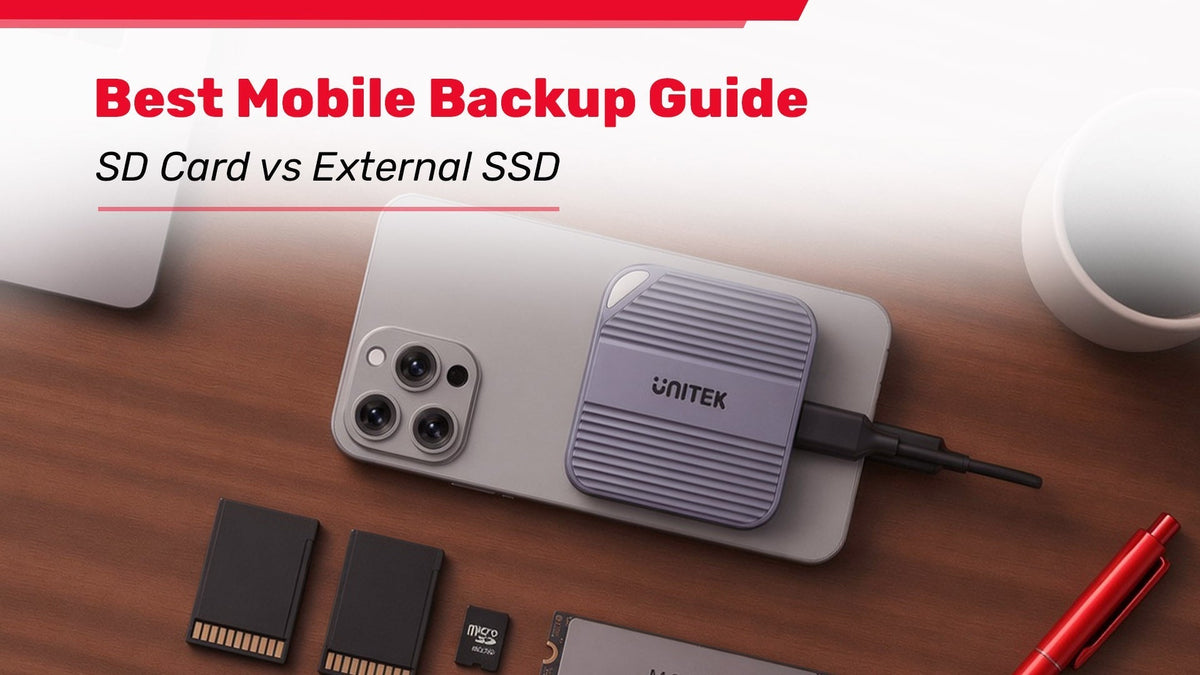
Limited internal storage on the iPad makes external expansion critical for workflows involving large photo libraries, video files, or extensive documents. The preferred method is connecting a high-capacity external SSD via a USB-C hub. These drives deliver fast transfer rates and allow direct open, edit, and save operations on the external volume, eliminating the need to first transfer files to the device.
This configuration is particularly suited to backup processes, large project files, and high-resolution video editing. Alternatively, hubs equipped with integrated SD/microSD card readers enable immediate media import, offering an efficient solution for photographers, travellers and content creators who require on-the-spot file access.
![]()
 iPad Charging & Cable Essentials
Consistent power delivery is critical for sustained productivity. The iPad Pro with M5 supports fast charging up to approximately 60W, while the iPad Air with M4 is rated for roughly 30–35W. Selecting high-power USB-C cables that are fully compatible with the hub is necessary to maintain optimal charging rates when an external display and multiple peripherals are connected simultaneously.
A minimum of 45W is recommended for chargers and cables. For setups involving a hub and several accessories, a 60W–100W Power Delivery charger and corresponding cable provide more reliable performance, allowing the device to continue charging efficiently under load. Non-certified or low-quality cables frequently result in reduced charging speeds or unstable connections and should be avoided in favor of certified products.
Choosing a high-quality USB hub also matters. With a dedicated PD charging port and advanced power delivery protocols, it can intelligently supply the correct voltage and current to your iPad, ensuring safer charging, preventing over-voltage risks, and helping extend the battery lifespan of your devices.
![]() iPad External Monitor Setup for Extra Workspace
iPad External Monitor Setup for Extra Workspace
An external display is a key component in approximating a full computer workflow on the iPad, particularly for design and creative applications as well as gaming. Connecting a 4K or higher-resolution monitor via the HDMI output on a USB-C hub and enabling Stage Manager provides a true extended desktop environment capable of running multiple application windows simultaneously.
For design professionals, the larger screen real estate allows concurrent visibility of reference materials, tool panels, and the primary canvas, resulting in measurable gains in drawing and editing efficiency. For gaming use cases, it delivers a more immersive large-screen experience.
Monitor selection should consider resolution, refresh rate, and interface compatibility. Full-size desktop displays are recommended for stationary workstations, while portable monitors offer greater flexibility for mobile or hybrid environments.
![]()
 Full Setup Guide and Smart Configuration Tips
While purchasing individual components provides maximum flexibility, the resulting cable management and portability challenges can reduce overall efficiency. Integrated product designs address this by embedding USB-C hub functionality directly into complementary accessories. Examples include keyboards with integrated multi-port hubs and tablet stands featuring a detachable hub in the base. These solutions consolidate device support, power delivery, and external display connectivity into a single streamlined unit.
Recommended Configuration Sequence
- Update the device to the latest iPadOS release to enable full Stage Manager and external display functionality.
- Establish the input devices (keyboard or trackpad) first, followed by connection of the USB-C hub and external monitor.
- Enable Stage Manager via Settings → Multitasking & Gestures, then configure display arrangement under Display & Brightness.
- Confirm stable high-power charging performance under multi-device load conditions.
iPad Setup FAQ
-
What are the key differences between USB hubs intended for iPad versus standard computers?
Due to the limited port availability on iPads, hubs must simultaneously support high-power charging and reliable video output. Device compatibility and effective power management are the primary selection criteria. -
Is it preferable to purchase a stand and hub as separate components or select an integrated solution?
For improved desk organization and portability, integrated products (stand with built-in hub or keyboard with integrated hub) are recommended. Users prioritizing maximum configuration flexibility and operating with a larger budget may prefer purchasing components individually. -
Does connecting a keyboard enable shortcut functionality?
Yes. Compatible keyboards support a range of standard shortcuts that align the iPad experience more closely with traditional desktop workflows. Common examples include Command + C (copy), Command + V (paste), Command + Tab (application switching), and Command + Space (Spotlight search). These shortcuts meaningfully improve efficiency in document work and multitasking scenarios.
UNITEK provides a selection of high-quality USB-C hubs, integrated tablet stand solutions with detachable multi-port hubs, and expansion systems engineered for stable 4K video output and high-power charging. These solutions enable a streamlined and productive desktop environment with the iPad. Visit the official UNITEK website to review the current product lineup and fully realize the computer-class capabilities of your latest iPad.
About UNITEK
We develop human-friendly products to help everyone be their best since 2001, serve multi-level customers including enterprises, governments, schools and end-users in more than 80 countries around the world.
We are uncompromising in our pursuit of product excellence. Every UNITEK product comes with three major quality assurances:
- International Certifications: All products meet rigorous global technical standards, ensuring superior performance and safety.
- In-House Quality Testing Center: Every item undergoes strict testing in our own dedicated quality inspection center before leaving the factory, guaranteeing consistent reliability.
- Official 2-Year Warranty: We proudly offer a comprehensive 2-year manufacturer warranty, giving you complete peace of mind.